Best Resolution for DTF Transfers: DPI Requirements
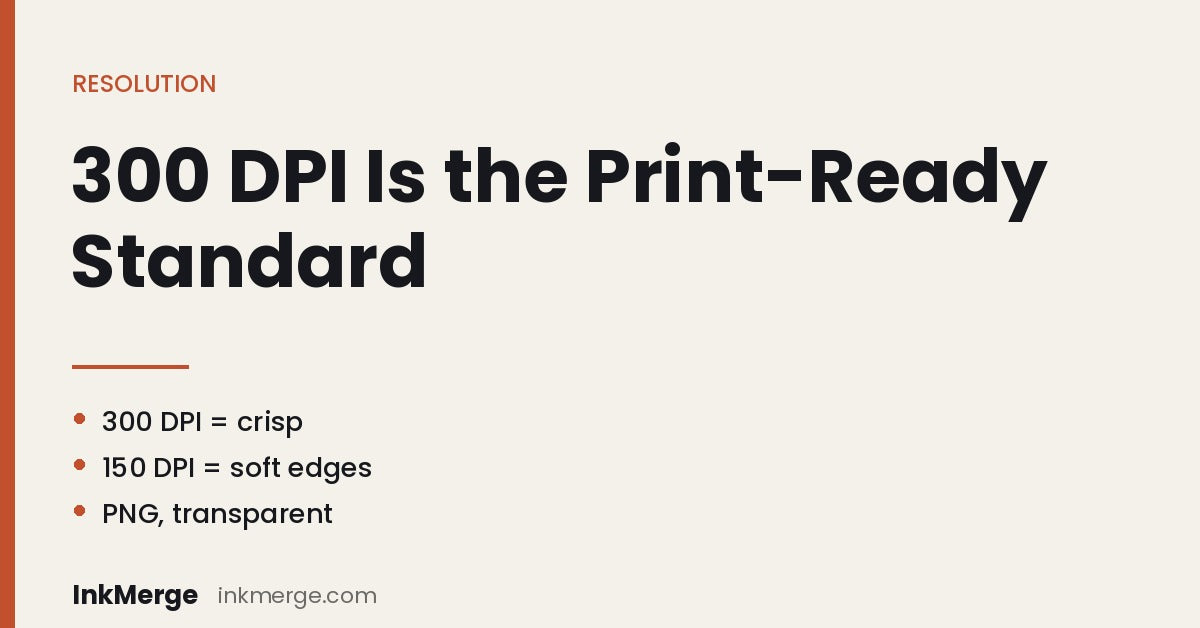
Quick answer: For the workflow described in this InkMerge guide, prepare raster artwork at 300 DPI at the intended print size. DPI only makes sense together with the final dimensions: a file can have plenty of pixels for a small print and still become soft when enlarged.
Why resolution matters for DTF artwork
DTF artwork contains edges, text, curves, gradients, and small details that can reveal low-resolution source files. A file that looks acceptable on a phone or web page can still become visibly pixelated when it is enlarged for a garment print.
The practical question is not just “What DPI is this file?” It is “How many pixels does this file have at the size I want to print it?”
Use 300 DPI at actual print size as the target
This guide recommends 300 DPI at the final print size for raster artwork. That gives text, logos, photographs, and detailed graphics a consistent preparation target without creating unnecessarily large files.
For vector artwork, resolution is not fixed until the artwork is rasterized or exported. Export it at the intended physical size and the required raster resolution.
Calculate the pixel dimensions you need
The relationship is simple:
print width in inches × DPI = required pixel width
print height in inches × DPI = required pixel height
- A 3.5 × 3.5 inch design at 300 DPI needs about 1050 × 1050 pixels.
- A 10 × 12 inch design at 300 DPI needs about 3000 × 3600 pixels.
- A 12 × 14 inch design at 300 DPI needs about 3600 × 4200 pixels.
- A 3 × 4 inch sleeve design at 300 DPI needs about 900 × 1200 pixels.
These examples come from the original InkMerge guide and show why pixel count and print size must be evaluated together.
Do not confuse changing the DPI label with adding detail
Changing a low-resolution file from 72 or 150 DPI to 300 DPI does not automatically create missing image detail. If the source file does not contain enough pixels for the requested print size, the safer choices are to use a better source file, recreate the artwork, or reduce the final print dimensions.
Check text and fine detail carefully
Small lettering, thin lines, distressed textures, and detailed photographs reveal resolution problems sooner than large solid shapes. Review the artwork at its intended print dimensions and inspect edges before submitting it.
Transparent PNG artwork
When a raster file needs transparency, PNG is a practical format because it preserves transparent areas without the compression artifacts associated with JPEG. A white rectangle in the source file is not the same as transparency; if the white area is part of the artwork, it can be treated as printable content.
Use the original high-resolution artwork rather than a screenshot, social-media download, or repeatedly compressed copy whenever possible.
What if the file is below 300 DPI?
A lower-resolution file is not automatically unusable, but the result depends on the artwork and the final print size. Large bold shapes can tolerate more reduction than small text or intricate detail. The safest response is to reduce the print size until the available pixels provide enough resolution, or replace the source with a higher-quality file.
Does 600 DPI automatically look better?
Not necessarily. The original guide notes that files above the recommended preparation target can become much larger without producing a visible improvement in the final garment print. Use enough resolution for the artwork and final size rather than increasing file size for its own sake.
DTF artwork checklist
- Confirm the intended physical print width and height.
- Target 300 DPI at that actual size for raster artwork.
- Use the original high-resolution file rather than a screenshot.
- Keep transparent areas genuinely transparent when the design requires them.
- Inspect small text, thin lines, and detailed edges.
- Do not enlarge a small raster file beyond the size its pixel dimensions support.
- Review the current product-page file requirements before ordering.
Frequently asked questions
What DPI should I use for DTF artwork?
For the workflow described in this guide, InkMerge recommends 300 DPI at the intended print size for raster artwork.
Is PPI different from DPI?
PPI describes the pixel density of the digital image, while DPI describes printed dot density. When preparing a raster design, the useful planning step is to make sure the source has enough pixels for the intended physical size.
Can I make a small file 300 DPI by changing one setting?
You can change the metadata or resample the image, but that does not recreate genuine source detail. Check the original pixel dimensions before enlarging it.
Which file should I upload?
Use the current file-format requirements shown on the relevant InkMerge product or builder page. When transparency is needed, a high-resolution transparent PNG is a common preparation format.
Upload custom DTF artwork · Build a gang sheet · DTF application guidance
InkMerge Pro
Need the transfer, not the shirt?
Browse ready-to-press DTF designs or upload your own artwork. Current product pricing and shipping details are shown on the product page and at checkout.