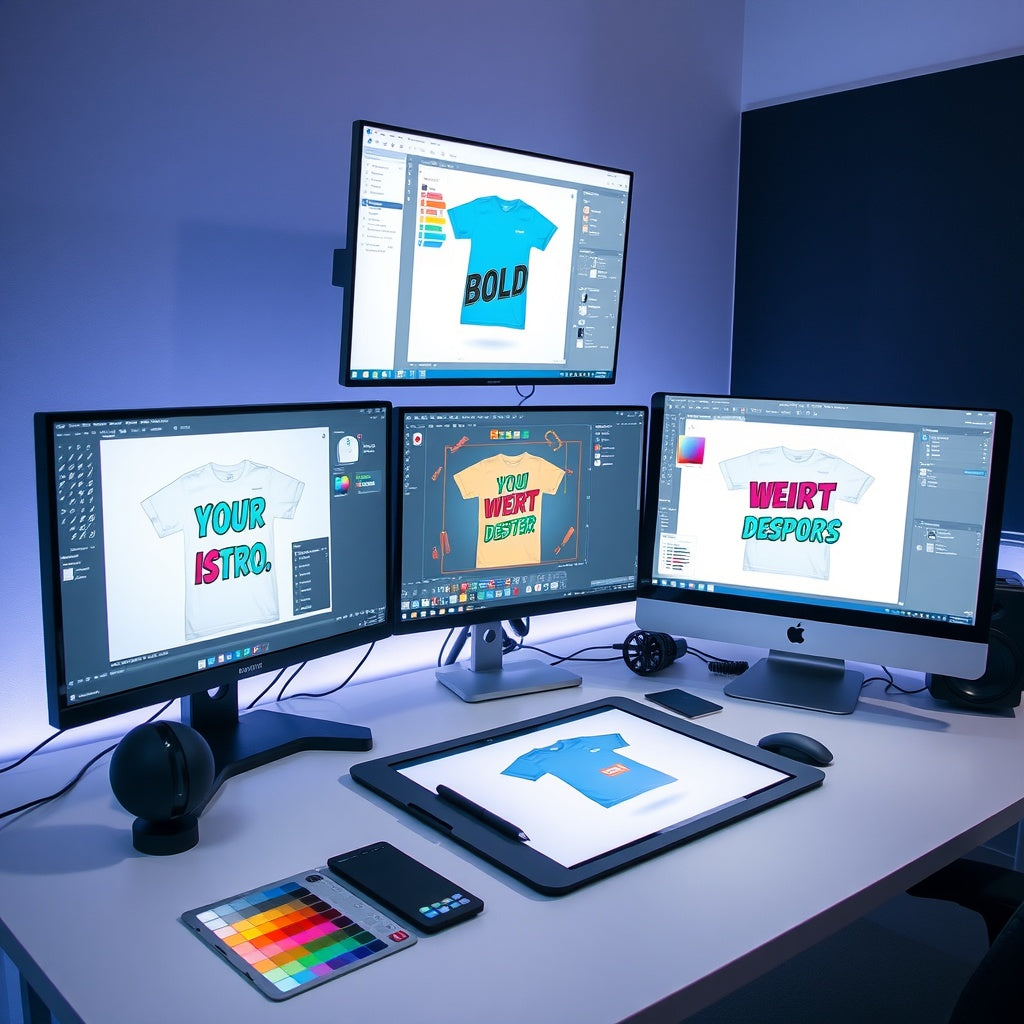
Best T-Shirt Design Software in 2026: 12 Free and Paid Tools for Custom Apparel
There is no single best T-shirt design app for everyone. The right tool depends on whether you need quick templates, typography, vector drawing, photo editing, hand-drawn illustration, collaboration, or production-ready file control.
This 2026 guide compares 12 currently available design tools by workflow instead of hard-coding subscription prices that can change. Before buying or subscribing, check each provider's current plan, export limits, asset licensing, and commercial-use terms.
Quick comparison: 12 T-shirt design tools
The fastest way to narrow the list is to choose the workflow first. Confirm the current export and licensing terms before production.
| Tool | Strongest fit | Workflow check |
|---|---|---|
| Canva | Beginner concepts, events, and quick template layouts | Verify asset licensing and export requirements |
| Kittl | Merch typography, badges, retro layouts, and mockups | Verify plan features and asset licensing |
| Adobe Express | Fast branded work for events, teams, and Adobe users | Use a deeper editor when precise vector or raster control is required |
| Photopea | Browser-based layered editing and transparent PNG preparation | Confirm the printer's color and export requirements |
| GIMP | Photo cleanup, compositing, textures, and raster artwork | Allow time for its traditional desktop-editor learning curve |
| Inkscape | Logos, typography, scalable graphics, and SVG work | Finish photo-heavy artwork in a raster editor |
| Adobe Illustrator | Professional vector artwork, logos, and reusable design systems | Choose it when professional vector depth justifies a paid tool |
| Adobe Photoshop | Photos, textures, detailed raster art, and compositing | Build at the required final pixel dimensions |
| Procreate | iPad drawing, hand lettering, and painted illustration | Use a separate vector tool when true scalable output is required |
| Figma | Collaborative review, clean graphics, and reusable brand elements | Confirm export and color requirements with the printer |
| CorelDRAW | Professional vector, layout, sign, and apparel workflows | Confirm version features and interchange formats |
| Krita | Brush-based digital painting and freehand illustration | Plan for separate typography or vector cleanup when needed |
What matters for T-shirt design software
Final print size
For raster artwork, build the file at the dimensions you actually intend to print. A practical target is 300 pixels per inch at final size when your print workflow asks for high-resolution raster artwork. The actual pixel dimensions matter more than simply changing a DPI label.
Transparency
Many garment-print workflows use artwork with transparent areas. Confirm that the tool and plan you choose can export the file format and transparency your printer requests.
Vector vs. raster
Vector artwork is useful for logos, clean typography, shapes, and designs that need to scale. Raster tools are useful for photographs, painted illustrations, textures, and pixel-level editing. Many designers use both.
Licensing
Software access and artwork licensing are separate questions. A tool may let you create a design while individual templates, fonts, stock assets, AI features, or marketplace resources have their own terms. Verify the current license for anything you plan to sell on merchandise.
1. Canva — quick templates and simple merch layouts
Canva currently offers a dedicated T-shirt design maker with customizable templates, drag-and-drop editing, stock graphics, and cross-device design tools. It is a practical starting point for simple typography, event shirts, school designs, and fast concept work.
Best fit: beginners, quick layouts, simple branded graphics, and teams that want an easy browser-based workflow.
Watch for: asset licensing, export requirements, and whether a template-based workflow gives you enough control for the final artwork.
2. Kittl — merch-focused typography and vector-style design
Kittl currently provides a T-shirt design workflow with merch templates, typography controls, vectorizing, mockups, artwork placement tools, and export options including PNG, JPEG, PDF, and SVG.
Best fit: apparel-oriented typography, badges, retro layouts, merch concepts, and designers who want design and mockup tools in one environment.
Watch for: the current plan and licensing terms for the specific assets or AI features you use.
3. Adobe Express — template-based design with Adobe assets
Adobe Express currently offers a dedicated T-shirt creator with ready-made templates, uploaded images, typography, Adobe Fonts access, logos, and brand tools. It runs on desktop and mobile.
Best fit: quick branded designs, events, teams, organizations, and users already working in the Adobe ecosystem.
Watch for: whether you need the deeper vector or raster control available in Illustrator or Photoshop.
4. Photopea — browser-based raster and vector editing
Photopea is a browser-based image editor that currently supports both raster and vector graphics. Its official documentation says it can open and export formats including PSD, PNG, JPG, SVG, and PDF.
Best fit: designers who want a Photoshop-like browser workflow, layered editing, transparent PNG preparation, and common file-format support without installing a desktop app.
Watch for: production color requirements and whether your printer needs a workflow that goes beyond browser-based editing.
5. GIMP — free open-source raster editing
GIMP is a free image editor with a native layered XCF format and broad import/export support. It is useful for image cleanup, compositing, transparency, texture work, and raster artwork preparation.
Best fit: photo-based or raster designs, image cleanup, designers who want an open-source desktop workflow, and users comfortable with a more traditional editor.
Watch for: learning curve and the requirements of your specific production workflow.
6. Inkscape — free vector artwork
Inkscape is centered on SVG, a scalable vector-graphics format. Vector workflows are useful for logos, typography, shapes, clean line art, and artwork that needs to be resized without the same pixel-resolution limits as raster images.
Best fit: logos, text-heavy shirt designs, scalable graphics, and designers who want a free vector editor.
Watch for: raster effects or photo-heavy artwork that may be easier to finish in a pixel editor.
7. Adobe Illustrator — precision vector design
Adobe currently positions Illustrator as its professional vector-graphics application for logos, icons, graphics, illustrations, typography, scalable artwork, and mockup-oriented workflows.
Best fit: professional vector artwork, logos, scalable merchandise graphics, complex typography, reusable design systems, and print-production workflows.
Watch for: subscription cost and whether you actually need its professional feature depth.
8. Adobe Photoshop — advanced raster artwork and compositing
Photoshop remains Adobe's advanced image-editing and design application, with tools for selections, color, compositing, object editing, graphics, and mockup work across desktop, web, and mobile.
Best fit: photo-based shirt art, textures, detailed raster illustration, advanced compositing, and PSD mockup workflows.
Watch for: final pixel dimensions. Raster artwork does not become infinitely scalable simply because it was created in Photoshop.
9. Procreate — hand-drawn illustration on iPad
Procreate is currently an iPad-focused drawing and painting app with layers, blend modes, selections, transform tools, brushes, and common image import/export workflows.
Best fit: hand lettering, illustration, drawing, painted artwork, and creators who prefer Apple Pencil.
Watch for: Procreate is primarily a raster illustration workflow. Its official documentation notes that SVG, AI, and EPS are not supported as imported vector formats, so use a vector tool when true scalable vector output is required.
10. Figma — collaborative vector design
Figma Design currently includes vector drawing and editing tools, textures, reusable components, and an image-to-vector feature. While it is best known for interface design, those vector tools can also be useful for logos, clean graphics, layout exploration, and collaborative artwork review.
Best fit: teams collaborating on clean vector-style layouts, reusable brand elements, and design review.
Watch for: Figma is not specifically an apparel-production application, so confirm export and color requirements with your printer.
11. CorelDRAW Graphics Suite 2026 — professional vector and layout workflow
CorelDRAW Graphics Suite 2026 is currently offered for professional vector illustration, page layout, photo editing, and typography. Corel also specifically shows T-shirt work among the uses for its vector graphics tools.
Best fit: experienced sign, print, apparel, and graphics professionals who want a mature vector-and-layout environment.
Watch for: plan/version differences and whether your collaborators or print provider need a more common interchange format.
12. Krita — free digital painting and illustration
Krita is a free, open-source digital painting application maintained for artists. It is especially useful for drawing, painted illustration, brush-based artwork, comics, and expressive raster designs.
Best fit: illustrators who want a free desktop painting workflow and artwork that begins with brushes rather than templates.
Watch for: apparel-production file requirements after the illustration is complete. You may still need another tool for vector cleanup, precise typography, or a printer-specific export workflow.
Which T-shirt design tool should you choose?
- Fastest beginner workflow: compare Canva, Adobe Express, and Kittl.
- Free raster editing: compare Photopea and GIMP.
- Free vector work: start with Inkscape.
- Professional vector work: compare Illustrator and CorelDRAW.
- Professional raster/photo work: Photoshop.
- iPad illustration: Procreate.
- Collaborative vector/layout work: Figma.
- Free painting/illustration: Krita.
Free vs. paid software
A paid tool is not automatically better for your shirt business. Pay when the software saves enough time, supports a workflow you truly need, improves collaboration, or gives you production control that your free tool cannot provide.
Likewise, “free” does not automatically mean commercially unrestricted. Always verify asset, font, template, stock, and AI-output terms separately from the software price.
Preparing artwork for DTF transfers
For raster DTF artwork, a transparent PNG is a common delivery format. Build the artwork at the intended print size and inspect the actual pixel dimensions. A practical target is 300 pixels per inch at final size when the transfer provider requests high-resolution raster artwork.
Do not assume every provider wants the same color mode, file type, white-underbase setup, or artwork treatment. Follow the file instructions for the transfer supplier you are actually using.
Mockups are not production proofs
Design software and mockup generators can help you evaluate placement, composition, and presentation, but a mockup cannot guarantee exact print color, fabric behavior, garment fit, texture, or transfer performance. Use a physical sample when those details matter.
Official product sources checked
Capabilities above were checked against official product or documentation pages on September 10, 2026. Plan limits and licensing terms can change, so verify them again before commercial use.
- Canva T-shirt design maker
- Kittl T-shirt design maker
- Adobe Express T-shirt creator
- Photopea file and export documentation
- GIMP official site
- Inkscape official project
- Adobe Illustrator
- Adobe Photoshop desktop FAQ
- Procreate file types
- Figma vector networks
- CorelDRAW Graphics Suite
- Krita official site
InkMerge workflows
If you want a finished shirt, use the Shirt Finder to browse ready-made options or Customize Your Tee to upload your own artwork. For organization orders of 12 or more finished pieces, use the group-order quote path. If you already own a compatible heat press and want transfer-only products, browse InkMerge Pro DTF options.
Current InkMerge product options, pricing, and shipping information are shown on the relevant product page and at checkout.
Bottom line
The best T-shirt design software is the tool that gets your artwork from idea to a correctly prepared production file with the least friction. Start with the workflow you actually need, verify licensing, build at real print dimensions, and avoid paying for advanced features you never use.
InkMerge Pro
Need the transfer, not the shirt?
Browse ready-to-press DTF designs or upload your own artwork. Current product pricing and shipping details are shown on the product page and at checkout.